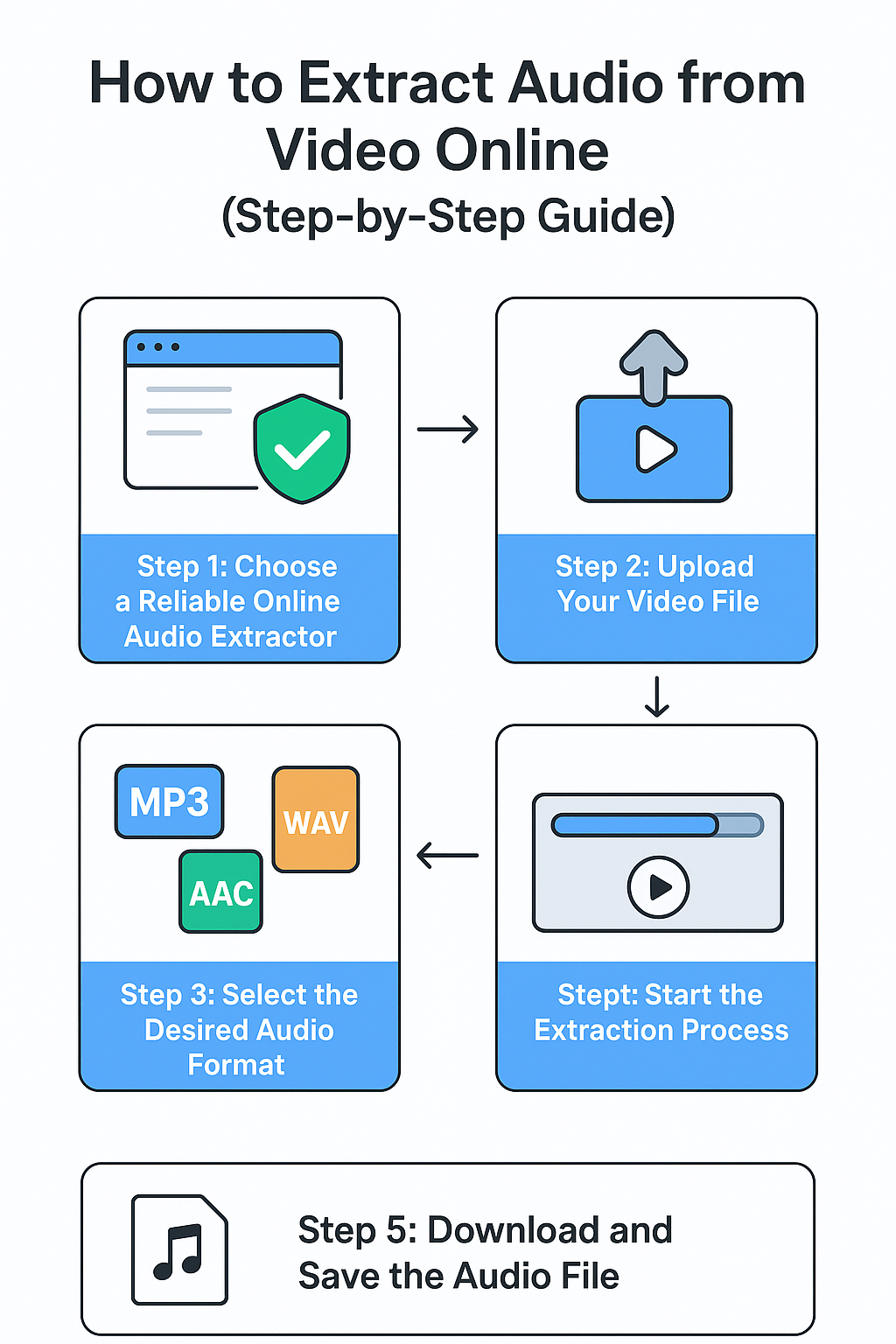
When you publish podcasts, webinars, or training clips every week, converting one file at a time is a bottleneck. A repeatable batch workflow keeps outputs consistent and prevents clipping, mismatched bitrates, or broken filenames.
Below is a 10-minute system you can run entirely in the browser with Audio Extractor.
Prep your queue before converting
- Group similar sources together. Separate camera recordings from screen captures and livestream downloads; each has different noise and loudness.
- Normalize file names. Use a predictable pattern like
2025-12-03_client-standup_episode-21.mp4so exported audio lines up in your CMS. - Pick one target format per batch. Use WAV for editing-heavy work, MP3 192 kbps for voice, and MP3 256+ kbps for music-heavy clips.
- Collect housekeeping data. Make a sheet with title, speaker, and publish URL so you can add ID3 tags later without digging.
Conversion steps (repeat per file)
- Upload the video to Audio Extractor.
- Choose WAV if you plan to clean noise, then export a MP3 derivative after editing. Otherwise, select MP3 directly.
- Set bitrate: 160-192 kbps for speech-first content; 256-320 kbps if music or sound design matters.
- Match the sample rate to the source (often 48 kHz for cameras). Avoid upsampling or downsampling across the batch.
- Export, then rename the file using your naming convention immediately to avoid mix-ups.
Keep quality consistent across the batch
- Loudness: Aim for -16 LUFS stereo (or -19 LUFS mono). If you do not have a meter, run a gentle limiter at -1 dB ceiling and listen for pumping.
- Noise: If a clip hisses, re-export from the original video as WAV and do a quick broadband noise reduction before creating the MP3.
- Channel layout: Convert mono sources to mono MP3s to cut size in half without artifacts. Keep stereo for music or ambience.
- QC in threes: After every three files, spot-check intros/outros and room tone to ensure nothing drifted.
Optimize handoff to editors or translators
- Bundle each batch with a checksum or file count so recipients know they have everything.
- Include a short README with the bitrate, sample rate, and loudness target you used.
- For transcription vendors, provide MP3 128-160 kbps mono - it is small but clear enough for ASR engines.
Troubleshooting common batch issues
- Mismatched durations: If audio is shorter than video, re-export the video with constant frame rate, then extract again.
- Clicks at edit points: Add 5-10 ms fades at hard cuts inside your editor before exporting.
- Different volume between speakers: Split tracks before converting; process each speaker separately, then export.
Quick checklist
- Rename source videos with a consistent pattern.
- Decide on one target format/bitrate per batch.
- Extract with Audio Extractor, matching source sample rate.
- Meter around -16 LUFS and limit to -1 dB.
- Deliver the batch with notes on format, bitrate, and loudness so downstream teams can trust it.
With a simple checklist and a reliable online audio extractor, you can convert dozens of videos to MP3 or WAV without babysitting each file, and every stakeholder receives clean, predictable audio.